Fixing common Wan 2.2 video problems: warping, melting faces and blurry clips
Why Wan 2.2 image to video clips warp, melt faces, freeze or come out blurry in ComfyUI, and the fixes that work, in the order worth trying them.
Wan 2.2 is very good, and it still gives you bad clips. Faces that slide around like wet paint. A hand that grows a sixth finger halfway through a wave. A clip that’s technically fine but looks like it was filmed through a dirty window.
Most of these have boring causes, and the fix is usually cheaper than you’d guess. This is the order I go through things when a clip from workflow 03 of the AI Character Kit comes out wrong. The settings themselves (fp8 models, LightX2V 4 step LoRAs, 480 x 832, 81 frames) are covered in Wan 2.2 image to video settings that work on 24 GB, so I won’t repeat them all here.
One thing first: on an RTX 3090 Ti a clip takes about 2 minutes (roughly 119 seconds once the models are loaded). That’s cheap. Before you change anything, run the same setup with two more seeds. A surprising number of “problems” are just one unlucky seed.
Why does the whole frame warp or wobble?
If the background bends, walls lean, or the whole image seems to breathe, look at the size before anything else.
Wan’s WanImageToVideo node takes your image and a target width and height. If your image is portrait and the video is set to 832 x 480 horizontal (or the other way round), the model is working from a squashed or cropped version of your picture. It tries to make sense of that, and the result wobbles.
The fix is dull but it works: portrait image, portrait video (480 x 832). Horizontal image, swap to 832 x 480. If your image is a weird ratio, crop it to roughly 9:16 or 16:9 before loading it.
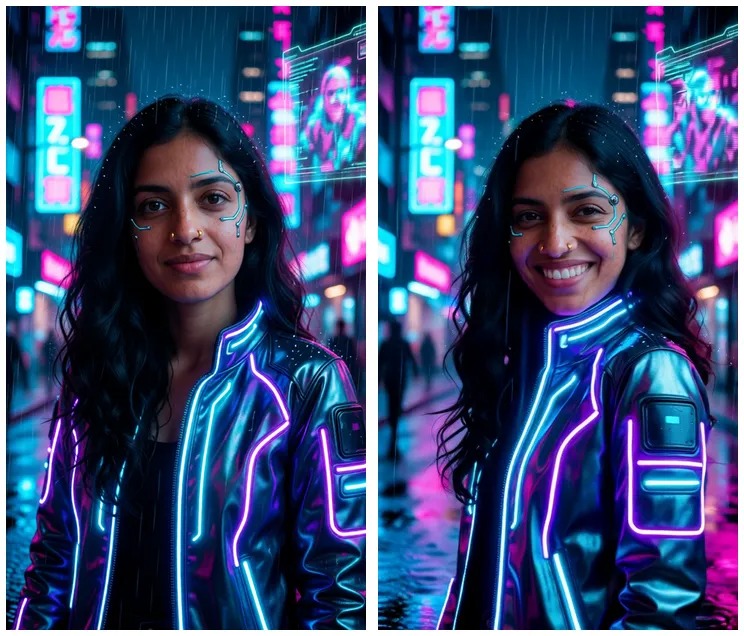
Left, the source still. Right, a frame from the clip. Same ratio in, same framing out, no stretching to fight.
Why do faces melt?
“Melting” usually means one of two things, and they have different fixes.
The face loses shape during movement. The jaw softens, the eyes drift, then it snaps back. This almost always comes from too much motion for 81 frames. A head turn and a smile is fine. A spin, a jump, or a dance asks the model to rebuild the face from angles it never saw in your image. Cut the action down to one main movement. Wan 2.2 motion prompts has a list of small motions that hold together well.
The face slowly becomes someone else. No single frame looks broken, but by second 4 she isn’t quite your character. That’s usually the source image. Faces that are small in the frame, half covered by hair or a hand, or lit with hard shadows give Wan less to hold on to. A waist up shot with the face clear and fairly large animates much better than a full body shot where the face is a few dozen pixels tall.
If you’re making the source with an image editor, start each scene from your original base image instead of editing an edit. Small drift in the still becomes bigger drift in motion. How to keep the same face without LoRA training covers that habit.
How do you stop hands from going wrong?
Honestly, you don’t fully. Hands are still the weakest part of every video model I’ve used.
What helps:
- Reroll the seed first. Hands vary a lot between seeds.
- Relaxed or hidden hands are easier. Hands in pockets, holding a cup, resting on a table.
- Avoid fast hand moves near the face. A wave is riskier than a sip.
- If the source image already has a slightly odd hand, fix the still first. Wan will animate the mistake.
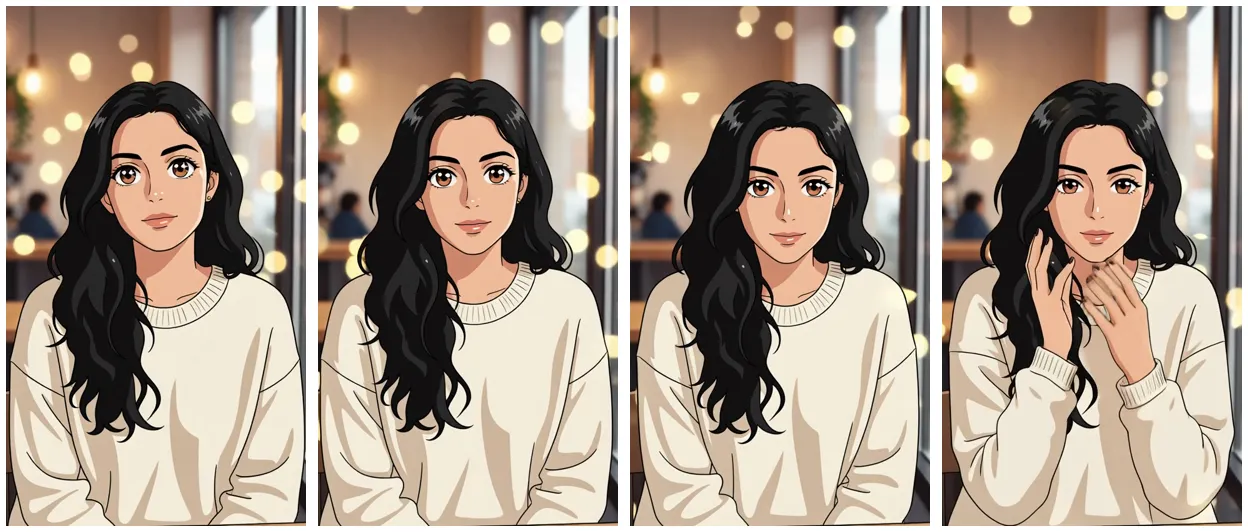
Here’s an anime style clip from the kit samples where the only real motion is a small head tilt and a hand coming up near the face. Small, slow, readable.
Why is the clip blurry?
Three different causes look similar, so check which one you have.
It’s just 480p. 480 x 832 is the speed setting. On a phone it looks fine. Blown up on a monitor, it looks soft. You’ve got two options. Upscale the finished clip to 1080 x 1920 in CapCut or any video upscaler, which is what the kit’s sample ad did. Or raise the size to 576 x 1024 if you have time and VRAM to spare. I’d try the upscale first, since it doesn’t change your render time.
It’s motion blur. If the sharp frames are the still ones and the blurry frames are mid movement, the motion is too fast. Ask for “slowly” or a smaller action.
It’s a settings mismatch. This one catches people who copy settings from different guides. The LightX2V 4 step LoRAs are built for CFG 1 and 4 total steps (2 on the high noise model, 2 on the low noise model). If you leave the LoRAs on but run CFG 3.5 or 20 steps, you’re mixing two recipes. Workflow 03 has an “Enable 4steps LoRA?” switch that flips steps, CFG and the split step together for exactly this reason: on, it’s 4 steps, CFG 1, split at 2. Off, it’s 20 steps, CFG 3.5, split at 10. Use the switch rather than editing the numbers by hand.
Also check that the high noise LoRA sits on the high noise model and the low noise LoRA on the low noise model. The file names look nearly the same and ComfyUI won’t warn you if they’re swapped.
Why does the clip barely move?
You press Run, wait two minutes, and get a photo that blinks. Usually the prompt describes the person instead of the motion. “Beautiful woman with long dark hair in a white dress on a beach” gives Wan nothing to do. Rewrite it with verbs: “She walks slowly toward the camera, hair moving in the breeze, waves rolling behind her, handheld phone camera, natural motion.”
Also make sure you didn’t edit the negative prompt. It’s the official Wan default, in Chinese on purpose, and it already pushes against static frames. Translating it or replacing it tends to make things worse, not better.
What if it runs out of memory or crawls?
- Close other GPU apps, including browsers with hardware acceleration on.
- Restart ComfyUI between big workflows. If you just ran an image model, its leftovers can still be sitting in VRAM.
- Drop the duration. Workflow 03 works out the frame count from a Duration and FPS pair (
floor(duration x fps + 1)), so setting Duration to 3 at 16 fps gives 49 frames instead of 81. - Judge speed from the second run. The first one loads over 30 GB of models from disk and is always slower.
You also want 32 GB of system RAM for video. With 16 GB it can work, but it’s slow or it crashes while models swap.
What order should you try fixes in?
If I had to put it on a sticky note:
- New seed, twice.
- Image ratio matches video ratio.
- Smaller, slower motion in the prompt.
- Clearer source image with a bigger face.
- Check the LoRA switch, CFG and steps agree.
- Upscale afterwards for sharpness.
Most clips are fixed by step 3. If you’ve done all six and it still falls apart, the motion might simply be wrong for image to video. Something like a specific dance or a talking-to-camera performance is easier with a driving video, which is what Wan Animate 2 vs a regular image to video is about.
The official ComfyUI Wan 2.2 tutorial is a good reference if you want to compare against the stock template.
If you’d rather skip the setup mistakes entirely, workflow 03 in the AI Character Kit comes with the sizes, the LoRA switch and the negative prompt already right, plus a fixes table in the guide for when things still go sideways.