Krea 2 Turbo in ComfyUI: realistic AI portraits with real skin texture
Krea 2 Turbo settings for realistic AI portraits in ComfyUI: 8 steps, CFG 1, euler/simple, 896 x 1344, the fp8 model and Qwen3-VL 4B text encoder.
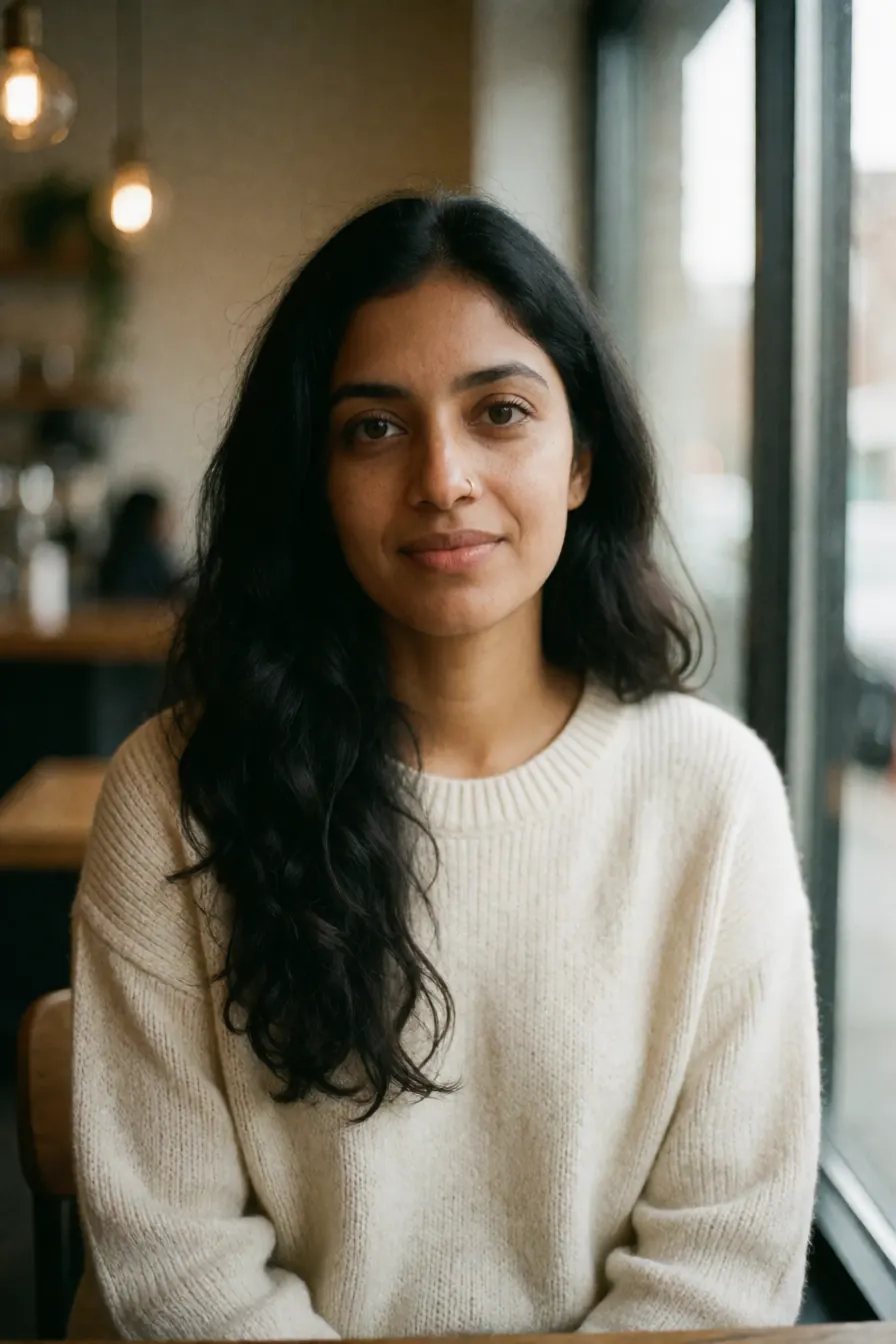
Most open image models can make a pretty face. Far fewer can make a face that looks like it was photographed on a Tuesday morning by someone’s friend. That second thing is what you want for a fictional character, and it’s where Krea 2 Turbo surprised me.
The skin has pores. The light falls off the way window light really does. Hair has flyaways instead of looking ironed. And because it’s a turbo model, you get there in 8 steps, which on an RTX 3090 Ti means about 32 seconds per image once the model is loaded.
This post covers the files, the exact settings, and the prompt habits that keep skin from going plastic. It’s the same setup as workflow 01 in the AI Character Kit.
What is Krea 2 Turbo, and why use it for a character?
Krea 2 is a text to image model, and Turbo is its distilled version. Distilled means it was trained to reach a finished image in very few steps, so you run it at 8 steps and CFG 1 instead of 30 steps and CFG 5.
For character work that speed matters. You won’t get your character on the first try. You’ll run the prompt six or ten times and pick the one face you want to live with. At 32 seconds a go, that’s a few minutes, not an afternoon.
The other reason is the look. Krea 2 leans toward photographic, slightly imperfect images rather than the glossy “AI portrait” style. That’s the base you want, because every bit of plastic gets copied into every later edit.
Which files do you need, and where do they go?
Three files, all free, all from the official Comfy-Org Krea 2 page on Hugging Face:
| File | Folder | Size |
|---|---|---|
| krea2_turbo_fp8_scaled.safetensors | models/diffusion_models | about 12 to 13 GB |
| qwen3vl_4b_fp8_scaled.safetensors | models/text_encoders | about 4.9 GB |
| qwen_image_vae.safetensors | models/vae | about 240 MB |
Budget around 18 GB of disk for the three.
Notice the text encoder. Instead of T5 or CLIP, Krea 2 reads your prompt with a 4B Qwen3-VL model, which helps with long, specific descriptions. Write a full sentence about a person and it won’t ignore the second half. The VAE is shared with Qwen Image Edit, so you’ll reuse it later.
Update ComfyUI before you load the workflow. Older builds don’t have the Krea 2 nodes and you’ll get “node type not found”. The official ComfyUI Krea 2 tutorial has a template if you’d like to compare against the stock version.
What settings does the workflow use?
| Setting | Value |
|---|---|
| Steps | 8 |
| CFG | 1 |
| Sampler / scheduler | euler / simple |
| Denoise | 1 |
| Size | 896 x 1344 (2:3 portrait) |
| Model | Krea 2 Turbo fp8 |
The size comes from a resolution selector set to “2:3 (Portrait Photo)” at about 1.2 megapixels, snapped to multiples of 8. That gives 896 x 1344: phone friendly, with the face big enough to edit later.
CFG 1 isn’t a typo. With a distilled model, higher CFG burns the image: harsh contrast, oversaturated skin, crunchy edges. It also means there’s no real negative prompt. The workflow zeroes out the negative conditioning, so typing “ugly, deformed” into a negative box does nothing. Put your effort into the positive prompt instead.
Can you raise the steps? Sure, nothing breaks. But the model was distilled to finish in 8, so extra steps mostly cost you time. I’d spend that time on more seeds instead.
How fast is it, and how much VRAM does it need?
On the kit’s test machine, an RTX 3090 Ti, a single 896 x 1344 image takes about 32 seconds after the first run. The first run is slower because the models load from disk.
Peak VRAM for image work in testing was about 17.4 GB, so a 24 GB card is comfortable. If you don’t have one, a rented 3090 works fine; the Vast.ai setup guide covers how to do that without surprise bandwidth charges.
Why does the skin look real, and what makes it go plastic?
Mostly it’s the words you use. Krea 2 takes realism cues seriously, in both directions.
These help:
candid iPhone photo, natural skin texture with visible pores, light freckles,
slightly grainy, shallow depth of field, soft window light, no makeup look,
flyaway hairs
These hurt:
perfect skin, flawless, 8k, masterpiece, ultra detailedThat second list is a habit from older models. With Krea 2 those words push toward an airbrushed, retouched look. Drop them.
Here’s a crop from the base image above at full size. You can see pores across the nose and cheeks, uneven tone under the eyes, and a tiny gold nose piercing that came straight from the prompt.
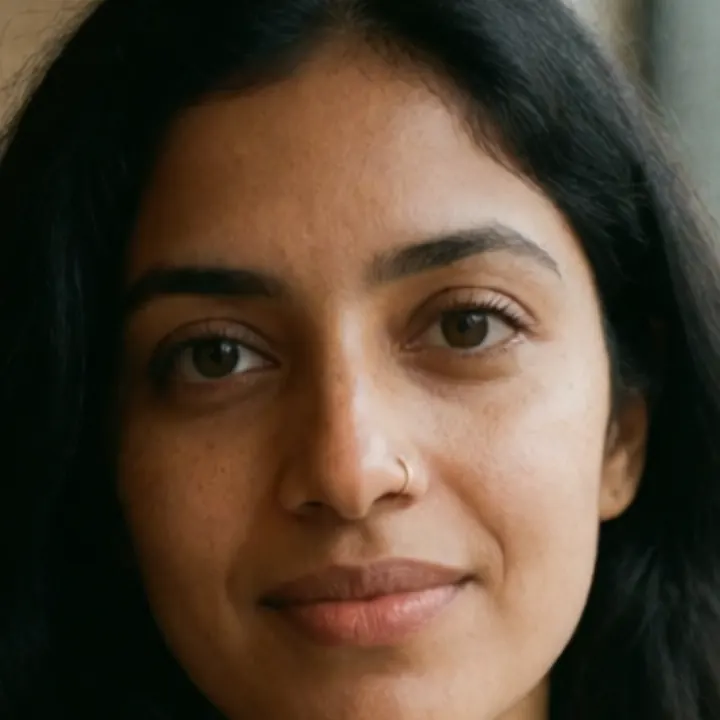
Light matters as much as words. “Soft morning light” or “warm lamp light” gives the model a reason to show texture. Hard noon sun and studio flash tend to flatten it.
Should you turn on Enhance prompt?
The workflow has two switches, both off by default: Enhance prompt and Style LoRA.
Enhance prompt runs your text through the Qwen3-VL encoder first and asks it to rewrite the prompt with more detail. It’s clever, and for a one-off scenic shot it can be nice. For a character I’d keep it off. It adds details you didn’t choose, like a necklace or a background plant, and it rewrites differently each time. You end up with a face you love and no exact prompt to explain it.
Style LoRAs (dark brush, retro anime, soft watercolor and others) also live on the Krea 2 page. Leave them off for a realistic character. If you want an anime version of her later, it works better to edit the realistic image than to generate a new stylised one from text, because a fresh generation is a new person. There’s a full post on turning a realistic character into anime, 3D or cyberpunk.
What does a good prompt look like?
Describe one specific person, in plain sentences, with a photo type up front. Here’s Mia, from the kit’s prompt library:
casual phone selfie video still of Mia, a 26-year-old woman with a light brown
shoulder-length bob and bangs, hazel eyes, a few freckles, wearing an oversized
grey hoodie, sitting cross-legged on her bed in a cozy bedroom, warm lamp light,
natural skin with visible pores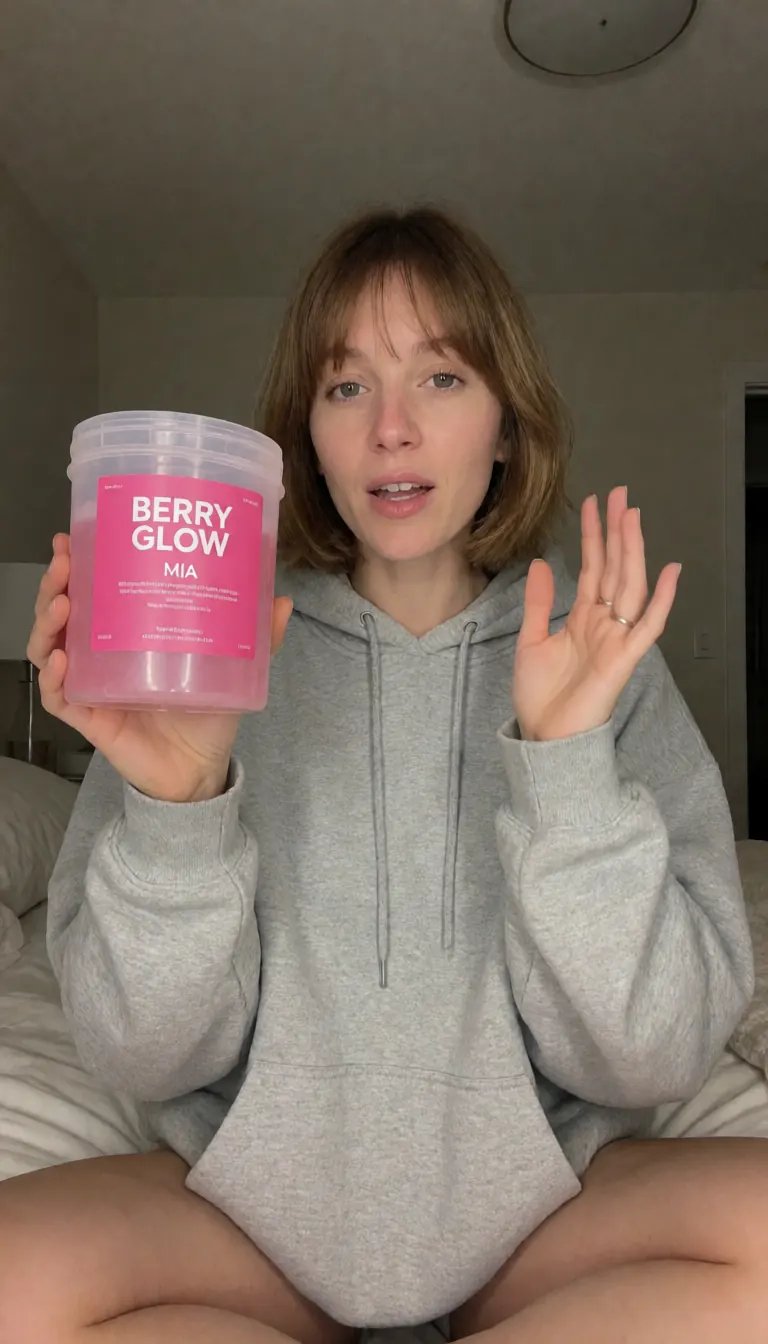
This version of Mia also had a pink tub of BERRY GLOW (a made-up brand) added to the prompt, since she was headed for a product ad. Products work best when they’re in the base image from the start.
Every part of that prompt has a job, and there’s a whole post on it: the character prompt formula.
What do you do with the best image?
Pick one. Not three. Save it as character.png and copy it into ComfyUI/input/.
That single image becomes the master copy of your character. Every new outfit, scene and video starts from it, which is how you keep the same face without training a LoRA. The method is laid out in how to keep the same face without LoRA training, and the next step after that is usually changing her outfit with Qwen Image Edit.
One honest caveat: Krea 2 Turbo’s commercial license is free only below $1M in yearly revenue, per the Krea Community License as of October 2026. Check the model page before you use it for client work.
If you’d rather not wire this up yourself, workflow 01 in the AI Character Kit has these settings already in place, along with the edit and video workflows that pick up where this one ends.